CB Sounddesign
Live message inspector
Operator's manual · v1.0
Operator's manual · v1.0
CB MIDI Monitor
Every MIDI message arriving at this machine, as it arrives, with the rate, the clock and the jitter measured alongside. It is the tool you open when a controller is doing something you did not ask for, or nothing at all, and you need to know which.
Watch
Every message, filtered by type
Measure
Rate, clock BPM, clock jitter
Keep
Freeze, export, save a map
Web MIDI is required
The page needs Web MIDI, which means Chrome, Edge or Brave, over HTTPS or from localhost. Firefox works after a one-time prompt. Safari has no Web MIDI at all. If you are running the offline copy from a folder and the browser refuses, serve the folder instead: python3 -m http.server 8000.
The page needs Web MIDI, which means Chrome, Edge or Brave, over HTTPS or from localhost. Firefox works after a one-time prompt. Safari has no Web MIDI at all. If you are running the offline copy from a folder and the browser refuses, serve the folder instead: python3 -m http.server 8000.
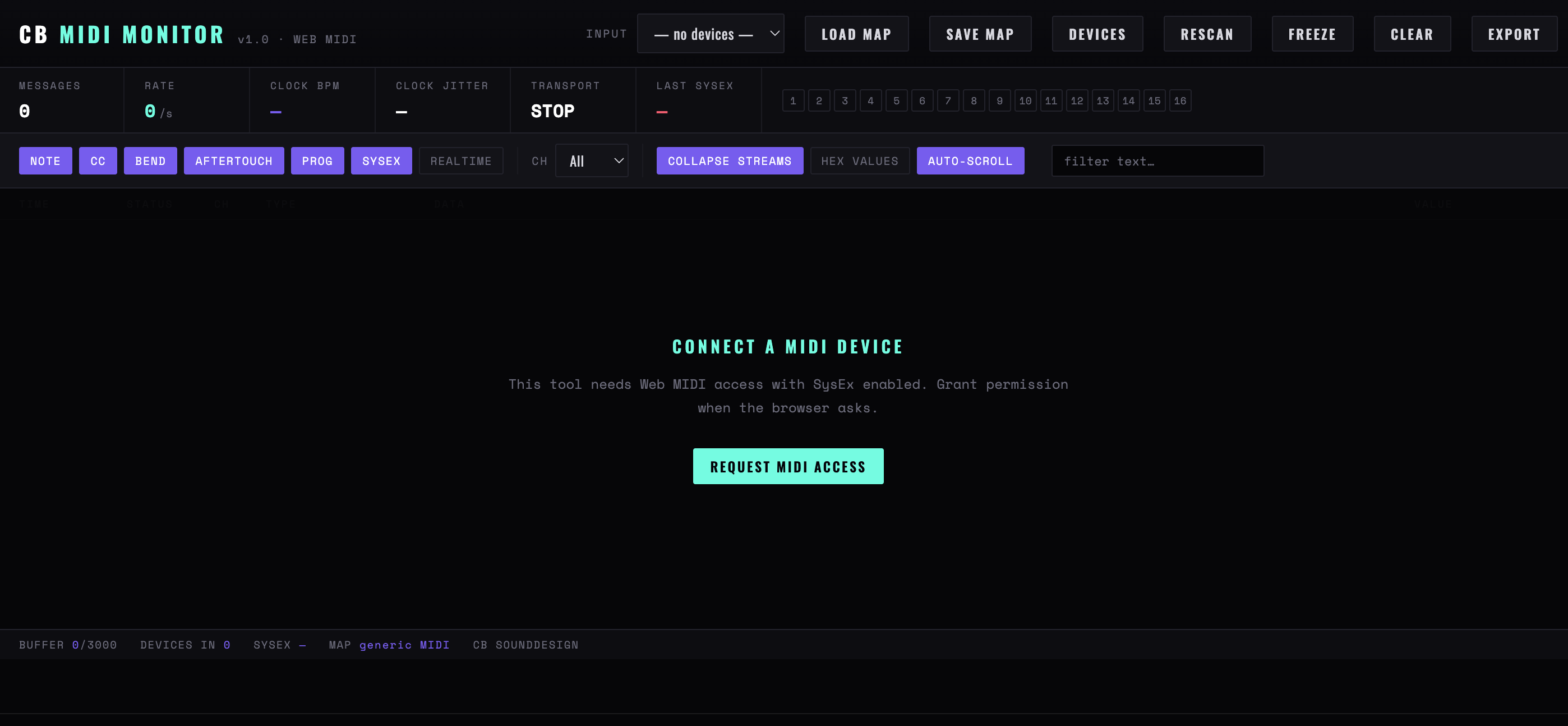
Figure 1 — The monitor before a device is connected: the four measurements across the top, the channel buttons, the type filters and display switches, and the footer with the buffer and map
Chapter one
Devices
The left column lists what the browser can see. Ports appear and disappear as hardware is plugged and unplugged, without a reload.
Inputs
Every input port. Click a row to monitor it — that is the gesture, and it is easy to miss. Until you click one, the message list stays empty even with a device sending.
Outputs
Listed for reference. The monitor does not send; No output ports is normal and not a fault.
Rescan
Asks the browser to enumerate again. Needed less often than you would think, but the first thing to try when a device is connected and absent from the list.
— no devices —
No ports at all. Either nothing is connected, or MIDI permission has not been granted — the Request MIDI access button tells you which.
Chapter two
The message list
One row per message: time, status, type, data and the interpreted value. It is a log, not a summary, and at full speed it moves fast.
Type filters
Note, CC, Bend, Aftertouch, Prog, SysEx and Realtime, each independent. Turn Realtime off first — clock messages alone are twenty-four per beat and will bury everything else.
Ch
Channel filter, or All. The fastest way to work out which channel a controller is actually transmitting on is to watch All and read the column.
Collapse streams
Folds runs of the same message type into one row with a count. Essential when watching a controller that sends continuous data — without it a single knob sweep fills the window.
Hex values
Raw bytes instead of interpreted values. Switch to hex when you are comparing against a device's implementation chart, and back for everything else.
Auto-scroll
Keeps the newest message visible. Turn it off to read something that just went past.
Freeze
Stops the display without stopping capture. FROZEN appears while it is on. This is how you read a message that appeared during a gesture you cannot repeat.
Clear
Empties the list. The counters reset with it.
Chapter three
The measurements
Four figures above the list, updating live. These are the reason to use a monitor rather than a DAW's MIDI log.
Messages / Rate
Total count and messages per second. A controller idling at anything above zero is sending something — usually active sensing, occasionally a stuck control.
Clock BPM
Tempo derived from incoming clock. Compare it against what the sending device claims; a disagreement means one of them is wrong about its own tempo.
Clock jitter
How unevenly the clock arrives. A stable USB clock is a fraction of a millisecond. Tens of milliseconds means the timing problem you are chasing is real and is in the cable or the driver, not in your ears.
Transport
Start, continue and stop as the device sends them. STOP is the resting state.
Last SysEx
The most recent system-exclusive message, kept because SysEx is long and scrolls away instantly. For anything more than a glance, use the SysEx Librarian.
Chapter four
Maps and export
Load map / Save map
A file naming the controls of a device, so CC numbers appear as names in the list. generic MIDI is the default map — no names, just numbers.
Export
The captured log as a file. The thing to attach when reporting a fault in someone else's hardware, because it is evidence rather than description.
Buffer
How much history is held. Old messages fall off the end; freeze or export before the moment you care about scrolls away.
Chapter five
Diagnosing with it
The three faults that come up most often, and how the monitor shows them.
Nothing arrives
Confirm the input row is selected — clicking it is the step people miss. Then check the device is on a port the browser can see, then rescan, then reload.
A note will not stop
Watch with only Note showing. A note-on with no matching note-off is a stuck note in the sender; a note-off arriving with velocity zero that the receiver ignores is a stuck note in the receiver. The log distinguishes them; the symptom does not.
Timing feels wrong
Enable Realtime and read the jitter. If jitter is low, the problem is downstream of MIDI. If it is high, the problem is the cable, the hub or the driver, and no amount of quantising will fix it.
CB Sounddesign · MIDI MonitorOperator's manual · v1.0